If you’ve updated to WordPress 6+ and opened Site Health you may have spotted this critical issue: “Autoloaded options could affect performance.” A lot of people dismiss it, or worse patch it away by tweaking a threshold value in core files. That’s the wrong move. Let me explain what’s actually happening, why it matters, and how to fix it properly.
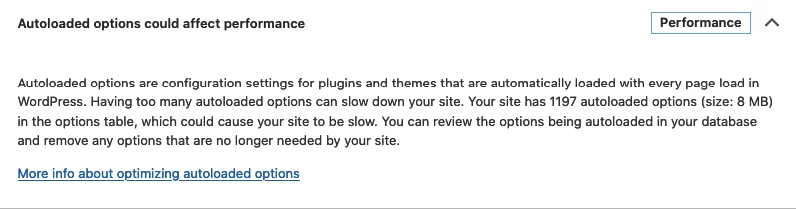
Usually you may see this error if your site has Autoloaded options greater than 800kb.
What Is Autoloading and Why Should You Care
Every time WordPress loads a page any page, front-end or back-end it runs a single database query to fetch all options where autoload = yes from the wp_options table. This happens before your theme loads, before plugins run their hooks, before anything else. It’s the very first database call of the request lifecycle.The data fetched gets stored in memory and is supposed to speed things up by making frequently-needed settings available instantly without additional queries. That’s a smart idea in theory. In practice, it becomes a serious problem when the total size of autoloaded data grows too large which happens on almost every site that has been actively maintained for more than a year or two. WordPress flags the issue when autoloaded data exceeds 800 KB. Values under 1 MB are generally tolerable if you have many active plugins, but once you’re past that threshold, you’re loading potentially megabytes of data into memory on every single page request including data for plugins you deleted two years ago. The performance impact is real: increased memory usage, slower time-to-first-byte, and in high-traffic scenarios, visible degradation across the entire site.
Why This Accumulates Over Time
The core issue is that WordPress plugins can register options with autoload enabled, and many of them never clean up after themselves when uninstalled. Themes are guilty of this too.
Here’s what typically ends up bloating wp_options:
- Removed plugins that left their data behind. Elementor, Slider Revolution, Asset CleanUp, CleanTalk, WooCommerce extensions all of them can leave hundreds of kilobytes of autoloaded records after being deleted.
- Transients stored with autoload. Some plugins incorrectly store transients (temporary cache data) as autoloaded options. These can grow indefinitely.
- Backup and migration plugin artifacts. Tools that snapshot theme or plugin settings often write large serialized blobs to wp_options.
- Page builder state data. Builders like Elementor store asset maps, font lists, and compiled CSS references all autoloaded.
The point is: the data accumulates silently, and nothing in WordPress core will warn you until it hits that 800 KB limit.
What You Should NOT Do
Before getting into the fix, let’s address the tempting shortcut: editing class-wp-site-health.php and raising the threshold from 800000 to some larger number so the warning disappears. Don’t do this!!!
That file is a WordPress core file. It will be overwritten on the next WordPress update, and your “fix” will vanish silently. More importantly, you haven’t fixed anything you’ve just hidden the problem. The performance cost is still there. The bloated database is still there. You’ve just told WordPress to stop telling you about it.
The same logic applies to simply disabling autoload for records at random. You cannot just turn off autoload for every large record and call it done. Some data needs to be autoloaded active theme settings, critical plugin configuration, WordPress core options like siteurl, blogname, active_plugins. Disabling autoload for these will result in additional database queries on every page load, which can actually make performance worse, not better. The goal is not to minimize autoloaded data at all costs it’s to remove the unnecessary autoloaded data.
How to Find What’s Actually Causing the Problem
The first step is identifying what’s taking up space. In phpMyAdmin run this query on your wp_options table:
SELECT option_name, length(option_value) as size, autoload
FROM wp_options
WHERE autoload = 'yes'
ORDER BY size DESC
LIMIT 30;
This gives you the 30 largest autoloaded records sorted by size. Look through the option_name column and ask yourself for each one: is the plugin or theme that created this still active on my site?
Common signs of safe candidates for removal or disabling:
- Names referencing plugins you’ve already deleted
- transient or site_transient prefixes with very large values
- Backup data from migration plugins you no longer use
- Settings from old themes no longer active
You can also use the Performance Lab plugin (official from the WordPress Performance Team). It surfaces autoload data directly in Site Health with context about which records are largest, making the audit more accessible without writing SQL queries.
How to Fix It Autoloaded options
Once you’ve identified records that are genuinely orphaned or unnecessary, you have two options:
Option 1: phpMyAdmin. Find the record in wp_options, click Edit and change the autoload value from yes to no. This does not delete the data it just stops loading it on every request. If something breaks, you can reverse it immediately.
Option 2: WP-CLI (faster for multiple records).
wp option update option_name_here --autoload=noFor truly orphaned records from deleted plugins, you can delete them entirely:
wp option delete option_name_here
What If You Can’t Safely Disable Anything?
If you’ve gone through every large autoloaded record and they all belong to active, necessary plugins the problem is different. In that case:
- Audit which plugins actually need all that data. A plugin storing 400 KB of autoloaded data is likely doing something wrong. Check if there’s a newer version that addresses this or look for a lighter alternative.
- Contact the plugin author. Excessive autoloading of large data sets is a genuine bug worth reporting.
- Consider object caching. A Redis or Memcached object cache can significantly reduce the performance cost of large autoload sets by keeping the data in memory rather than hitting the database each time.
Conclusion: The autoloaded options warning exists because WordPress has learned, across millions of sites, that this is one of the most common and underappreciated performance drains. It’s not a cosmetic issue. It’s a real database bottleneck that grows silently and compounds with every plugin you install and eventually remove. And don’t forget to make a backup before starting. I hope this will help you solve the problem! Good luck!

Written by Anton K, founder of Oswoptimize (known as swoptimize on Fiverr) and an SEO & Web Performance expert with 15+ years of experience optimizing WordPress sites, improving Core Web Vitals, and increasing search rankings.




Elaine says
It is truly a great and helpful piece of information.
Cassie says
This is very attention-grabbing, You’re an overly skilled blogger.
I’ve joined your rss feed and sit up for seeking extra of your
wonderful post.