A UK house clearance company came to me with a typical problem: their WordPress site looked fine on desktop, but on mobile it was painfully slow. Google PageSpeed Insights showed a mobile LCP of 12.6 seconds, and the mobile dropdown menu didn’t work properly.
Here’s exactly what was wrong and how I fixed it, with no one-click plugins and no “score hacks”.
The Stack
- Theme: Astra
- Builder: Elementor + Elementor Pro
- Addons: ElementsKit Lite, Element Pack
- Caching: LiteSpeed Cache
- Other: Google Site Kit
| Metric | Mobile | Desktop |
|---|---|---|
| Performance score | 62 | 79 |
| First Contentful Paint | 4.7 s | 0.8 s |
| Largest Contentful Paint | 12.6 s | 1.4 s |
| Total Blocking Time | 80 ms | 370 ms |
| Speed Index | 5.5 s | 1.2 s |
| CLS | 0 | 0 |
CLS was already fine. The problem was loading: render-blocking assets, heavy icon libraries, and caching settings that were doing more harm than good.
What Was Wrong
- LiteSpeed Cache was over-optimized. Almost every CSS and JS option was enabled: combine, minify, deferred JS, UCSS generation, inline async. On Elementor sites, aggressive combining often breaks things. Here, CSS Combine was the reason the mobile dropdown menu didn’t work. The settings were there, but they weren’t making the site faster in a meaningful way.
- Icon libraries were loading in full. The site used icons from ElementsKit and Jeg Kit. Even if a page uses a single icon, these addons load the entire icon library (450 KB+). On a mobile connection, that’s a serious LCP killer.
- No control over what loads and when. All JavaScript (Elementor, Element Pack carousels, ElementsKit widgets, Site Kit, GTM) loaded upfront, competing with the main content.
What I Did
Step 1. Full backup. Before touching anything, I made a complete backup with Backuply. Always.
Step 2. Cleaned up LiteSpeed Cache. I kept LiteSpeed for page caching (it’s excellent at that) and turned off the frontend optimizations that conflicted with Elementor:
JS Combine External and Inline → OFF
Load JS Deferred → OFF
CSS Combine → OFF (this fixed the broken mobile menu)
Generate UCSS / UCSS Inline → OFF
CSS Combine External and Inline → OFF
Inline CSS Async Lib → OFF
CSS Minify → OFF
Lazy Load Images → OFF (moved to Perfmatters)
Step 3. Moved asset optimization to Perfmatters. Perfmatters gives much finer control on Elementor sites:
- Delay JavaScript with careful exclusions. The ElementsKit mobile menu script and the Elementor Pro form scripts had to stay excluded, otherwise the menu opened with a delay and the contact form stopped submitting.
- Remove Unused CSS, tested page by page.
- Lazy loading for images below the fold only. The LCP image is never lazy-loaded.
- Preloading for critical resources, including the hero image and key fonts.
Step 4. Optimized fonts. Fonts were served locally with only the weights actually in use, and the critical ones preloaded, so text renders fast without extra requests to Google Fonts.
Step 5. Replaced icon libraries with Font Awesome. This was the most manual part. I replaced every ElementsKit icon with Font Awesome equivalents across the header, the footer, all pages and all templates. Then I disabled the ElementsKit icon pack completely (ElementsKit → Modules → Icon Pack). A small CSS snippet restored the dropdown arrow in the menu, which previously came from the ElementsKit icon set.
Results
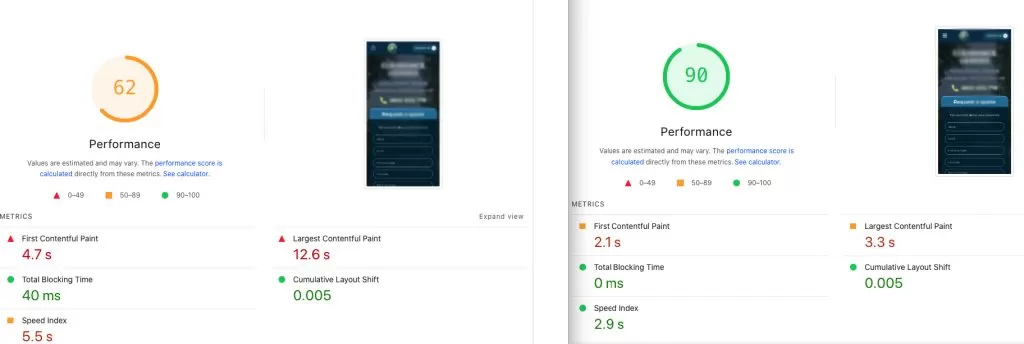
Mobile LCP dropped by 74% (12.6s → 3.3s), and Total Blocking Time went to zero on both mobile and desktop. Just as important: the mobile menu works again, and the contact form submits correctly.
A note on PageSpeed scores: PSI is a synthetic lab test. Results vary between runs (sometimes 85, sometimes 90+) depending on cache state and test server location. What matters long-term is real-user data in Google Search Console’s Core Web Vitals report, which updates over about 28 days.
Key Takeaways for Elementor Sites
- More optimization settings ≠ faster site. Combining and minifying everything in LiteSpeed Cache often breaks Elementor features without real gains. Use LiteSpeed for caching and a dedicated tool for asset control.
- Check your icon libraries. ElementsKit, Jeg Kit and similar addons can load 450 KB+ of icons for a single icon on the page. Use Font Awesome, or upload individual SVG icons.
- Delay JS, but test everything. Menus, forms and sliders need exclusions. Click every interactive element on mobile after enabling delay.
- Never lazy-load your LCP image. It’s one of the most common reasons for a bad mobile LCP.
Need the Same Results for Your Site?
I optimize WordPress, Elementor and WooCommerce sites manually: Core Web Vitals, LCP, CLS and real loading speed, without breaking your design or functionality. Get a free site review or see my WordPress speed optimization service.

Written by Anton K, founder of Oswoptimize (known as swoptimize on Fiverr) and an SEO & Web Performance expert with 15+ years of experience optimizing WordPress sites, improving Core Web Vitals, and increasing search rankings.



Leave a Reply